Manage Photo Albums - PC
Album View
An album is a collection of photo and video files. The **Albums **tab contains different types of albums, which fall into three main categories: regular albums, baby albums, and phone backup albums.
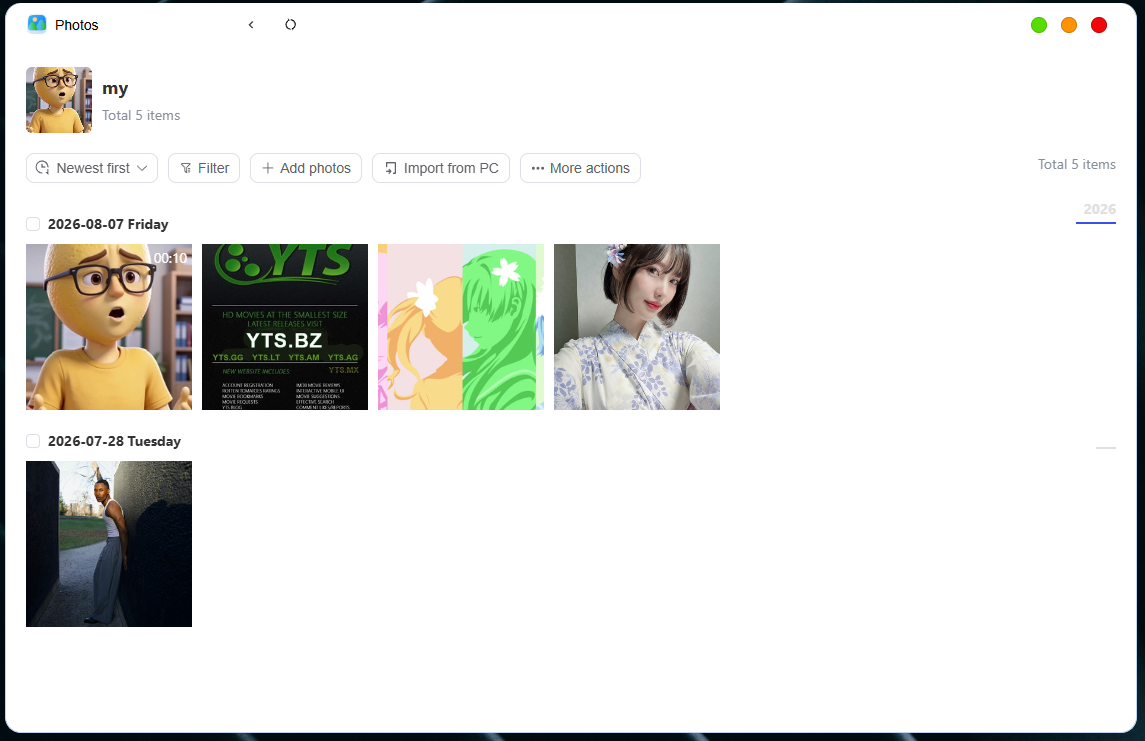
Create Album
On the album options page, you can create **regular albums **and baby albums.
Create a normal photo album
To create a normal album, please go to the **Albums **tab
- Tap the "+" button in the top right corner, select to create a " **Regular Album Regular Album **", enter the album name, tap "Confirm" to generate the album.
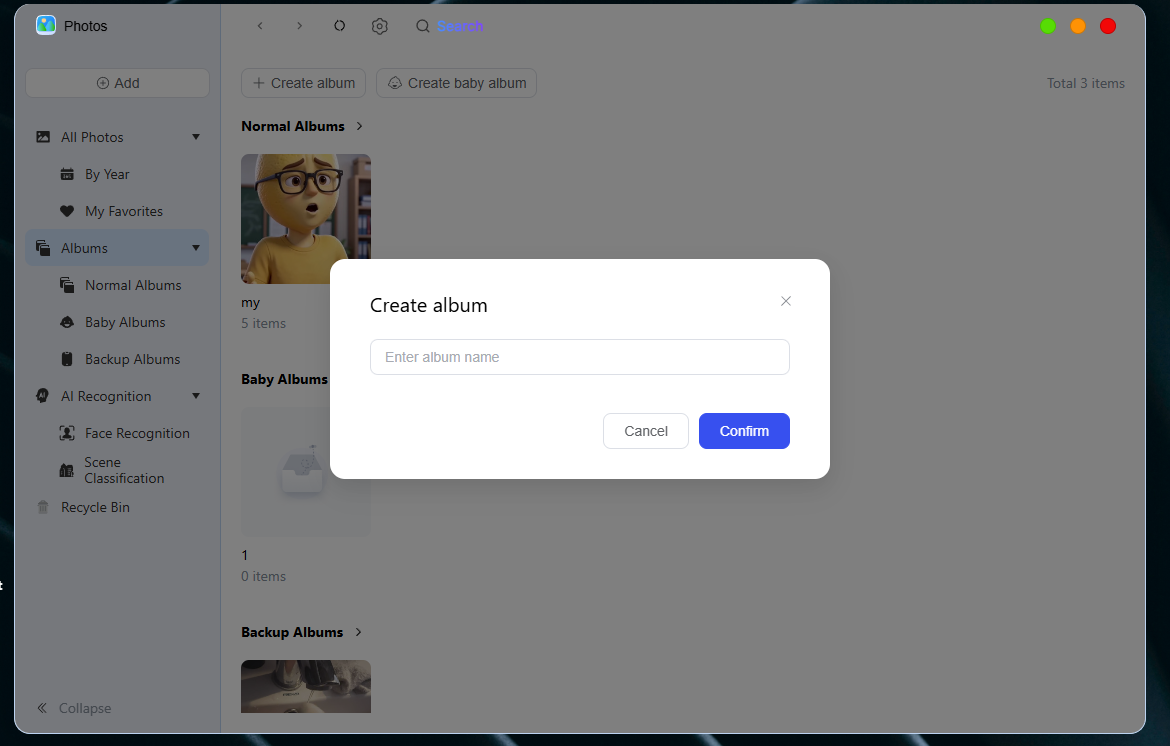
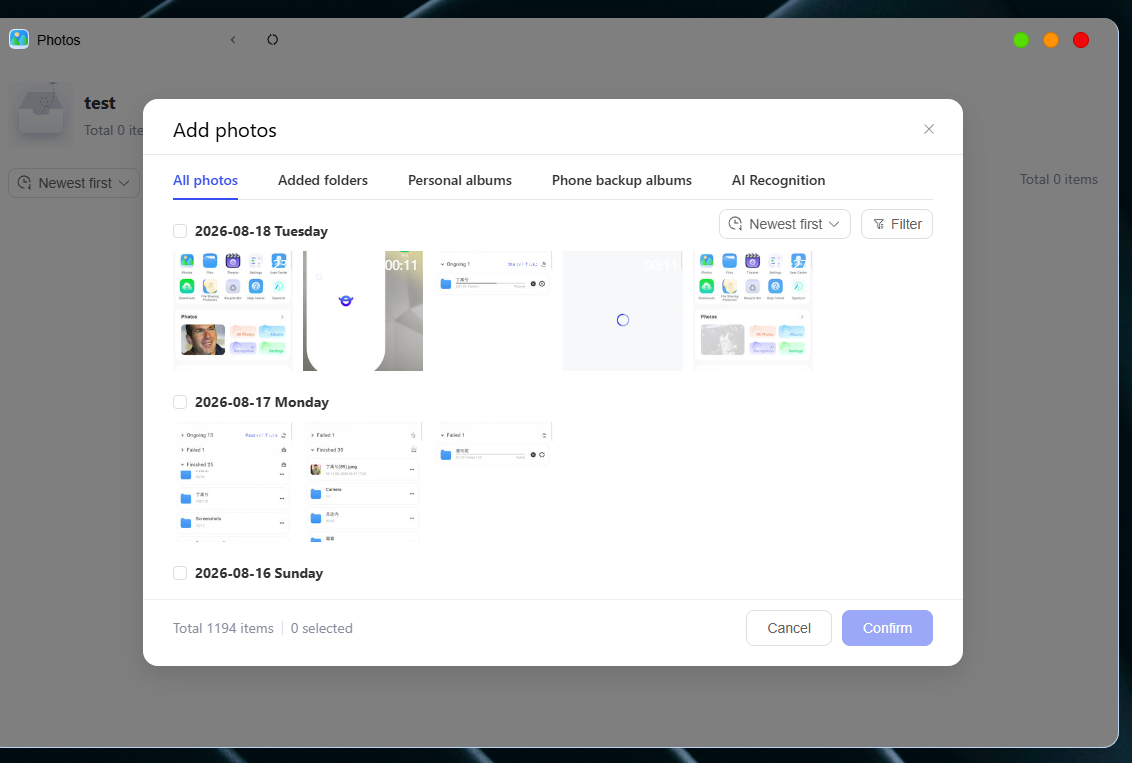
- Click on this album to perform operations including " **add ****p ****hotos **", " **import photos from computer ****p ****hotos **" and others
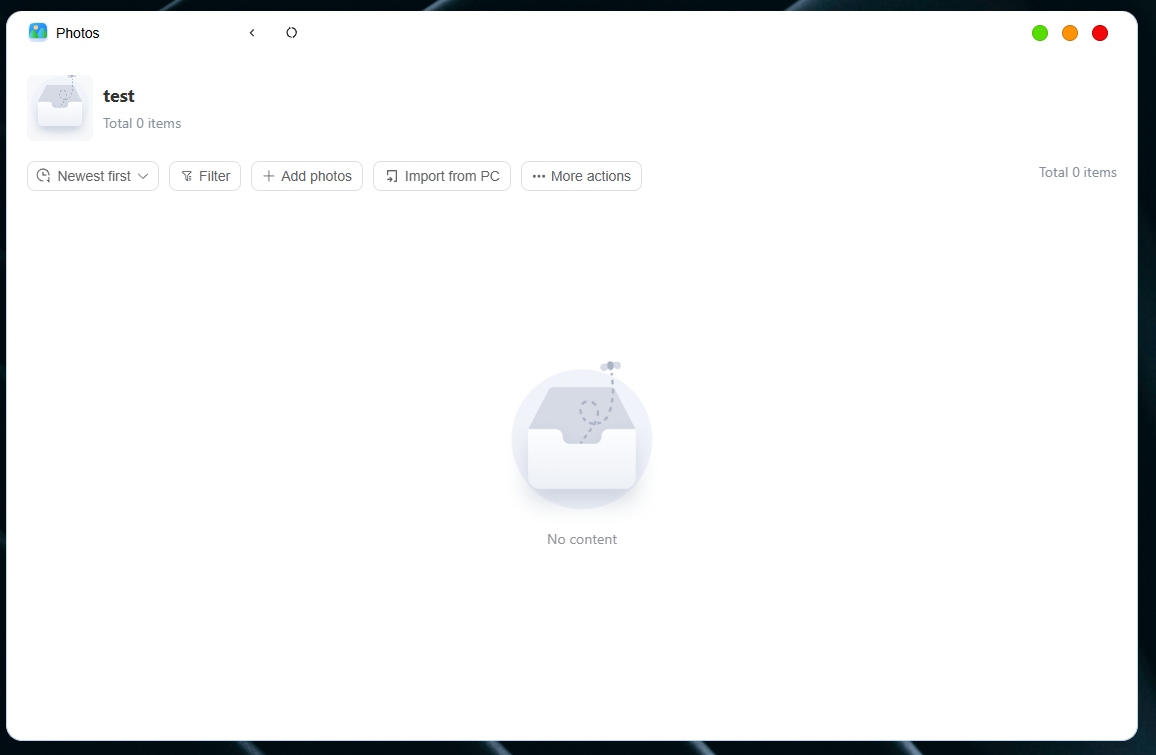
- After successful addition, you can view it in the album
- Click the " **···More Actions **" button that appears in the top-right corner of the album frame to modify the album settings.
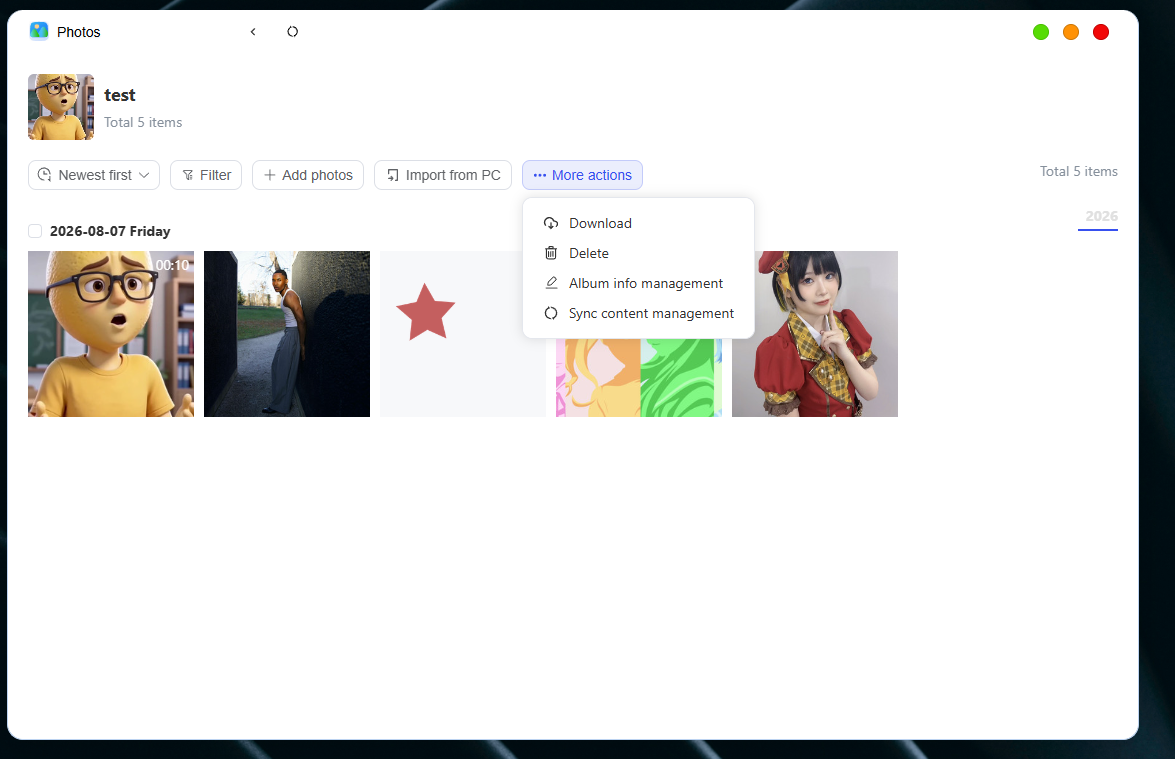
Download: Download the content of this album to your local computer
Delete: Delete this photo album
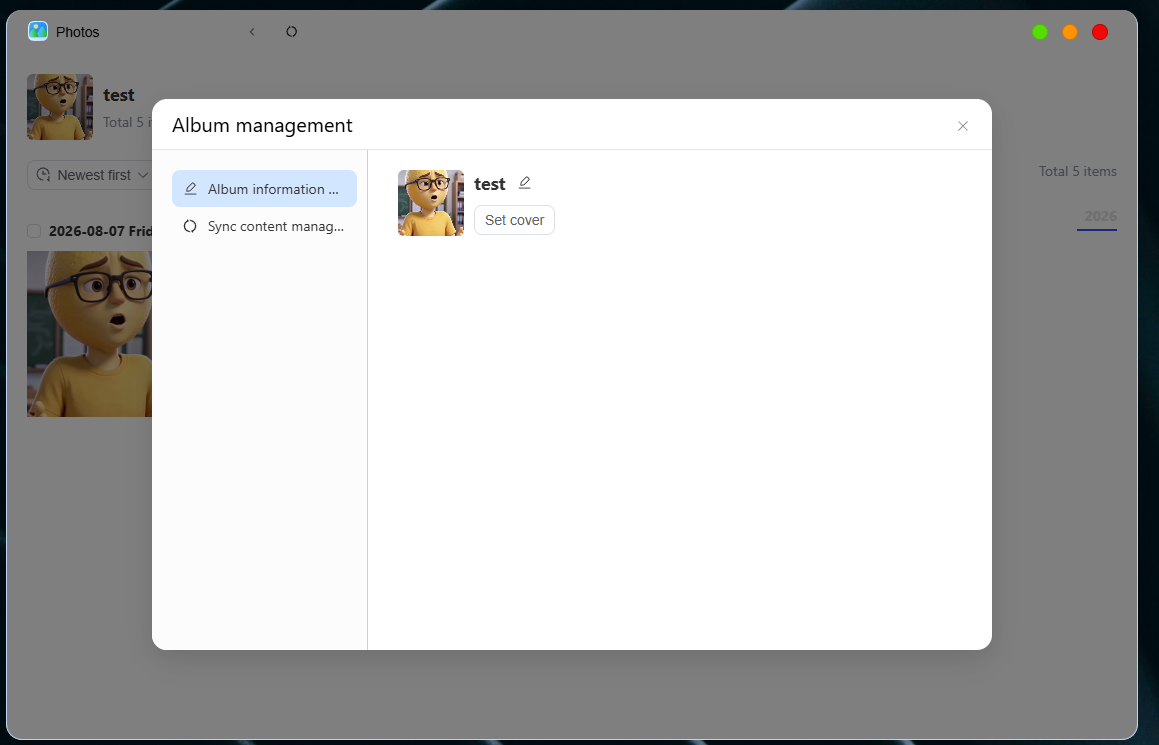
Album Information Management: A pop-up window for album information management will pop up
Album Information Management: Modify album name and set cover image
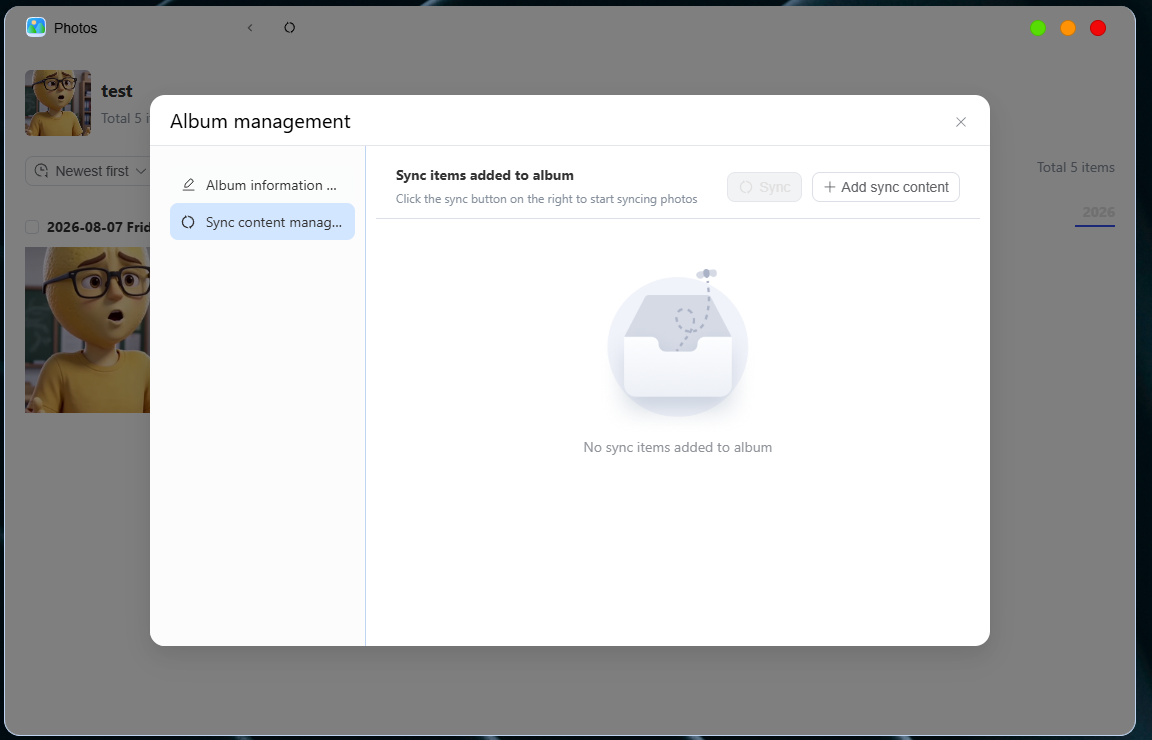
Synchronized Content Management: You can choose to add synchronized content to synchronize photos in real time
- In folder view mode, you can click the **sort icon **in the upper left corner to sort photos and videos, quickly locate specific content or organize your photos. This includes:
● Sort by shooting time (newest first / oldest first)
- Filter Function
The filtering function helps you quickly find photos and videos. The following are the supported filter options:
- File Type
You can choose to view all files, or only view videos, only view photos, only view Live Photos, only view GIFs, only view RAW files, or only view panoramic photos.
Create a baby photo album
**Baby Photo Album **is an album specifically designed to record the bits and pieces of a baby's growth and daily life. It can help parents and family members document the baby's growth journey by storing content such as photos and videos taken since the baby was born, records of important moments, growth milestones, and the moments when family members interact with the baby.
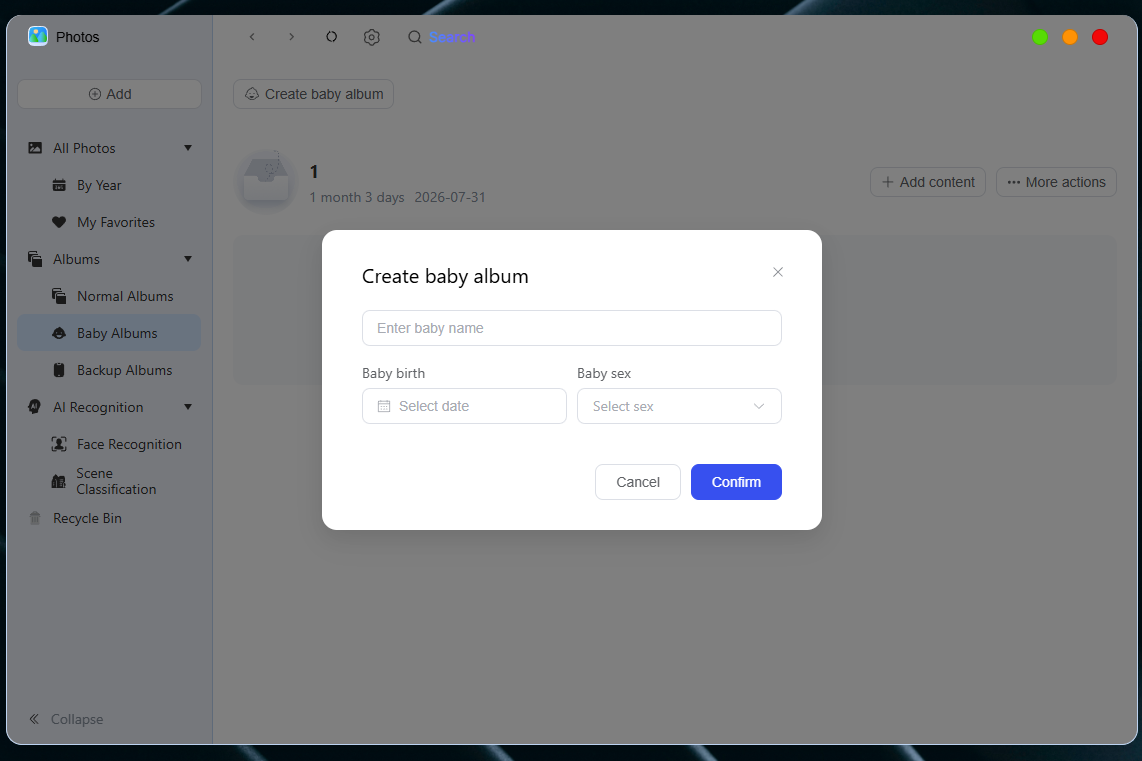
To create a baby photo album, you need to follow the steps below:
- Click " **Create Baby Album **", enter the baby's name, date of birth and gender, then click Create Album after filling in all the information.
-
Click on this album to select baby photos via options like Add Photos, **Import Photos from Computer **and other related functions.
-
Click the " **···More Actions **" button that appears in the top-right corner of the album frame to modify the album settings.
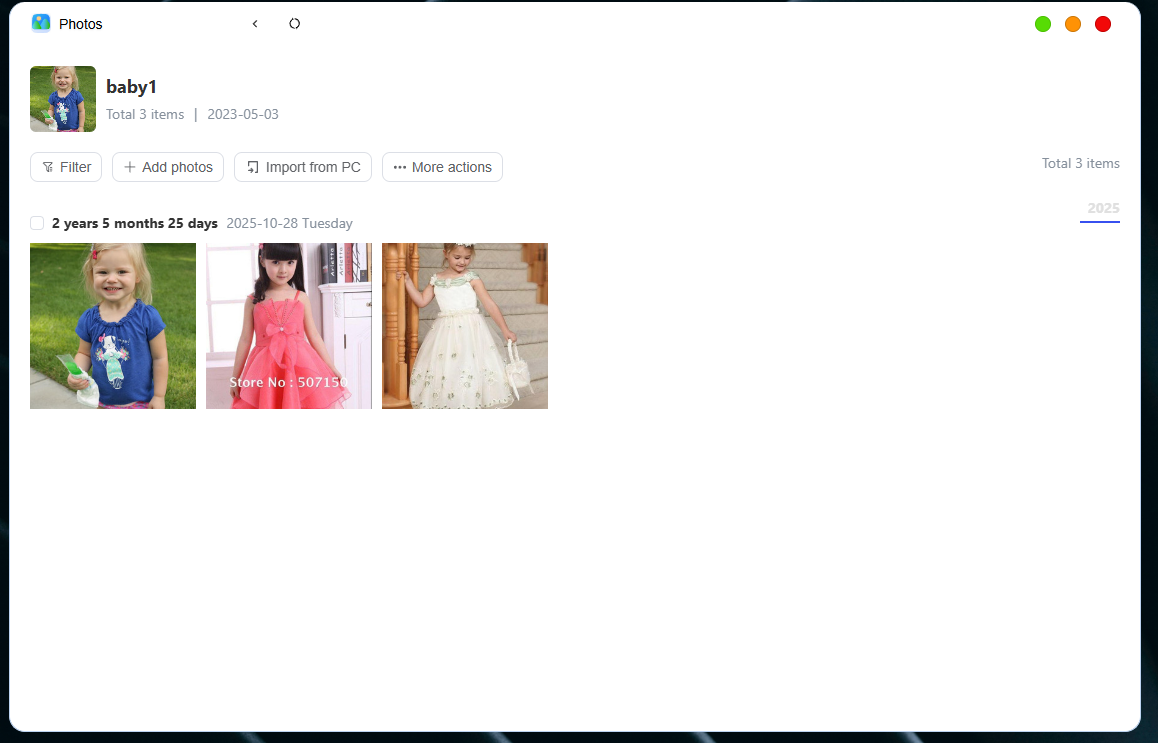
Download: Download the content of this album to your local computer
Delete: Delete this photo album
Album Information Management: A pop-up window for album information management will pop up
Album Information Management: Modify the album name, set the cover photo, baby's date of birth and baby's gender, and support adding custom relationships to the baby
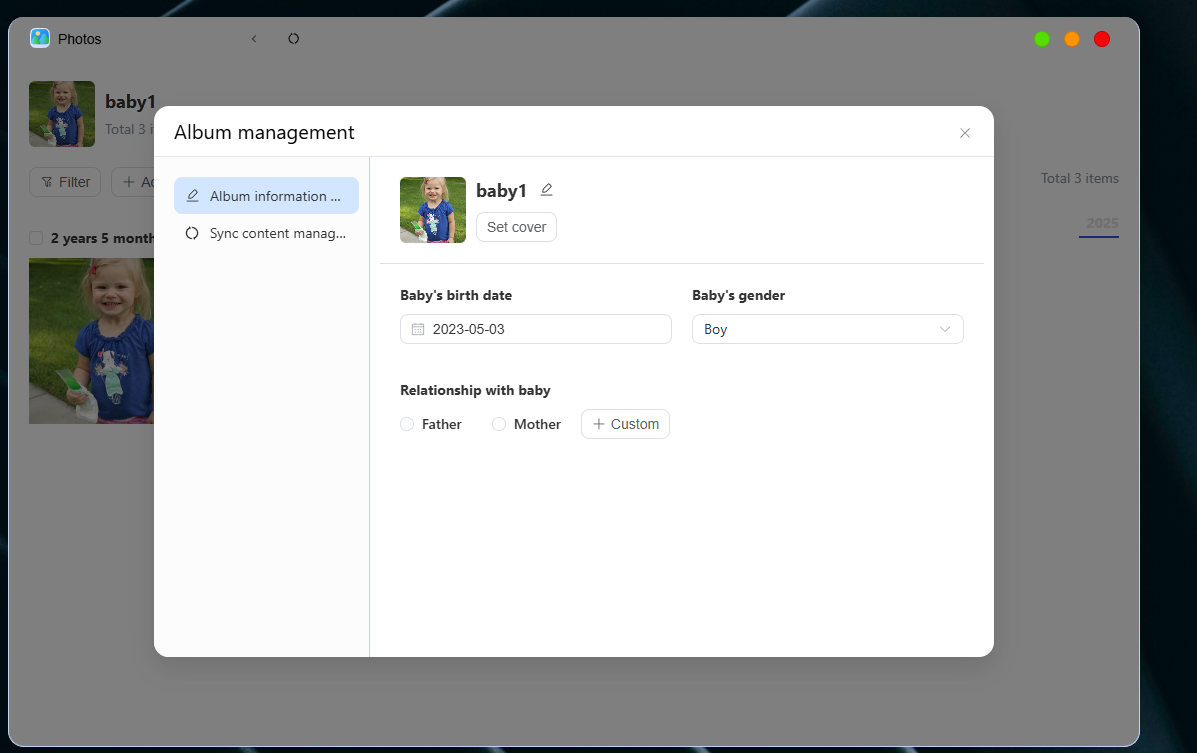
Synchronized Content Management: You can choose to add synchronized content to synchronize photos in real time
-
In folder view mode, sort photos by baby's age
-
Filter Function
The filtering function helps you quickly find photos and videos. The following are the supported filter options:
- File Type
You can choose to view all files, or only view videos, only view photos, only view Live Photos, only view GIFs, only view RAW files, or only view panoramic photos.
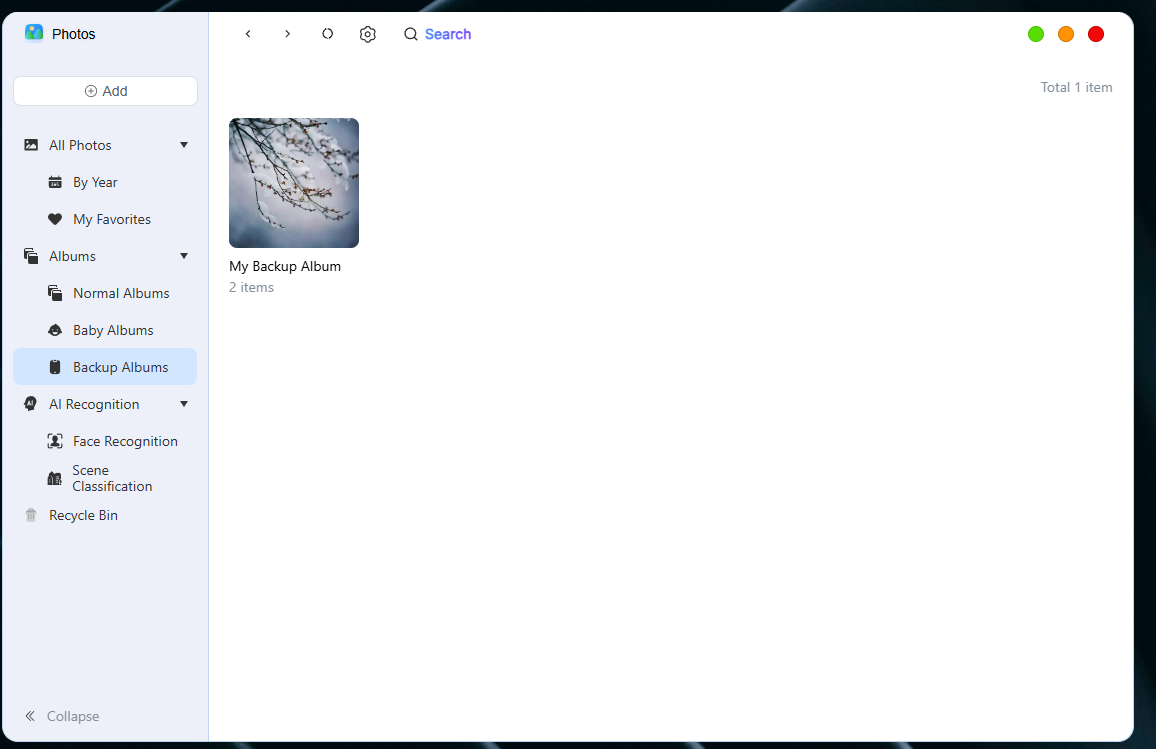
Manage mobile phone backup albums
-
Click on this album to perform " **Add Images **", " **Import Images from Computer **" and other operations to select photos.
-
Click the " **···More Actions **" button that appears in the top-right corner of the album frame to modify the album settings.
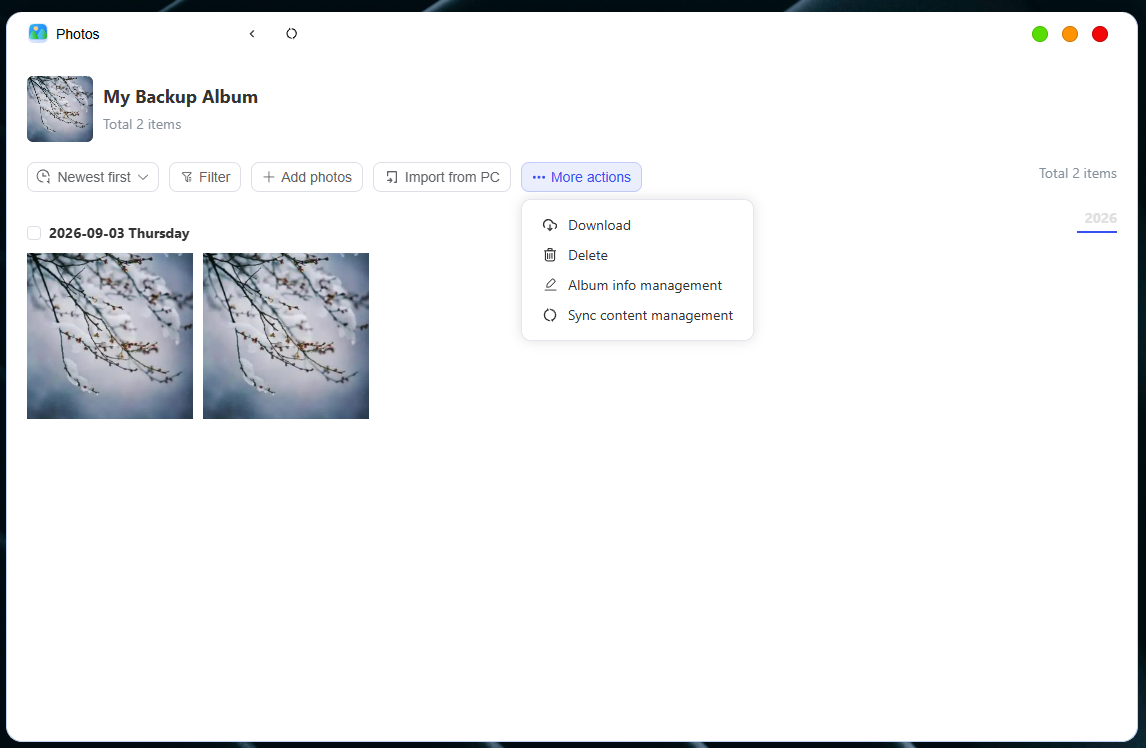
Download: Download the content of this album to your local computer
Delete: Delete this photo album
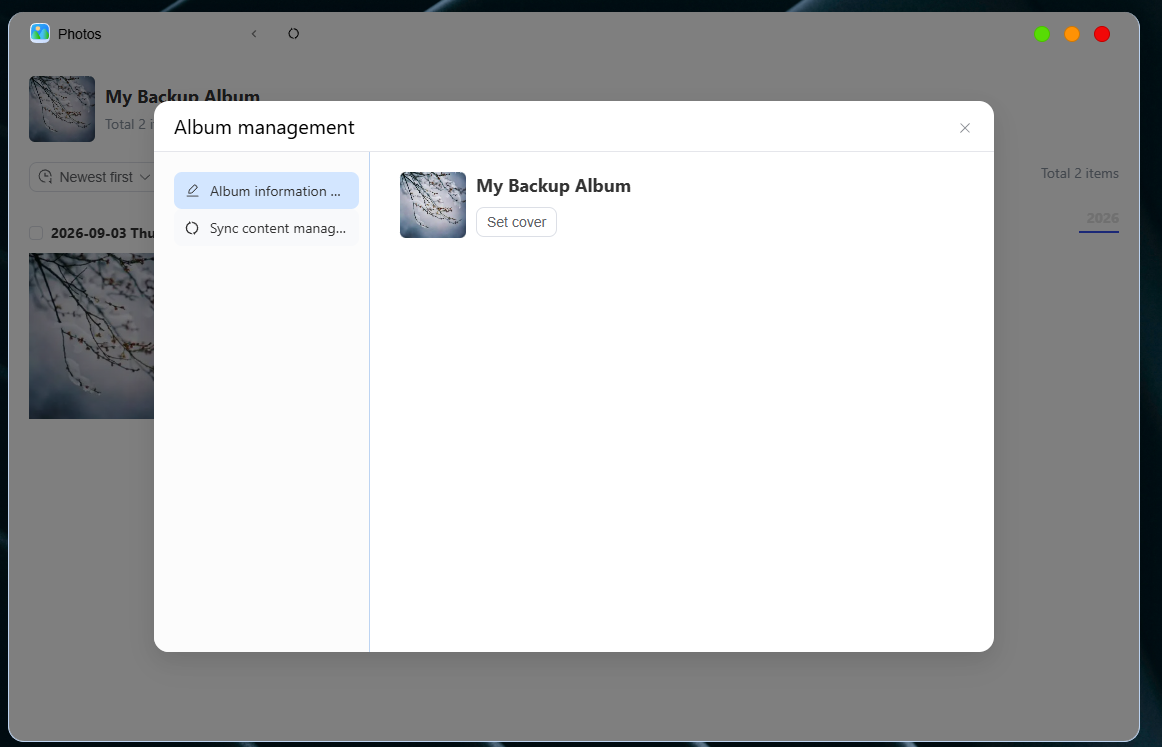
Album Information Management: A pop-up window for album information management will pop up
Album Information Management: Set Cover
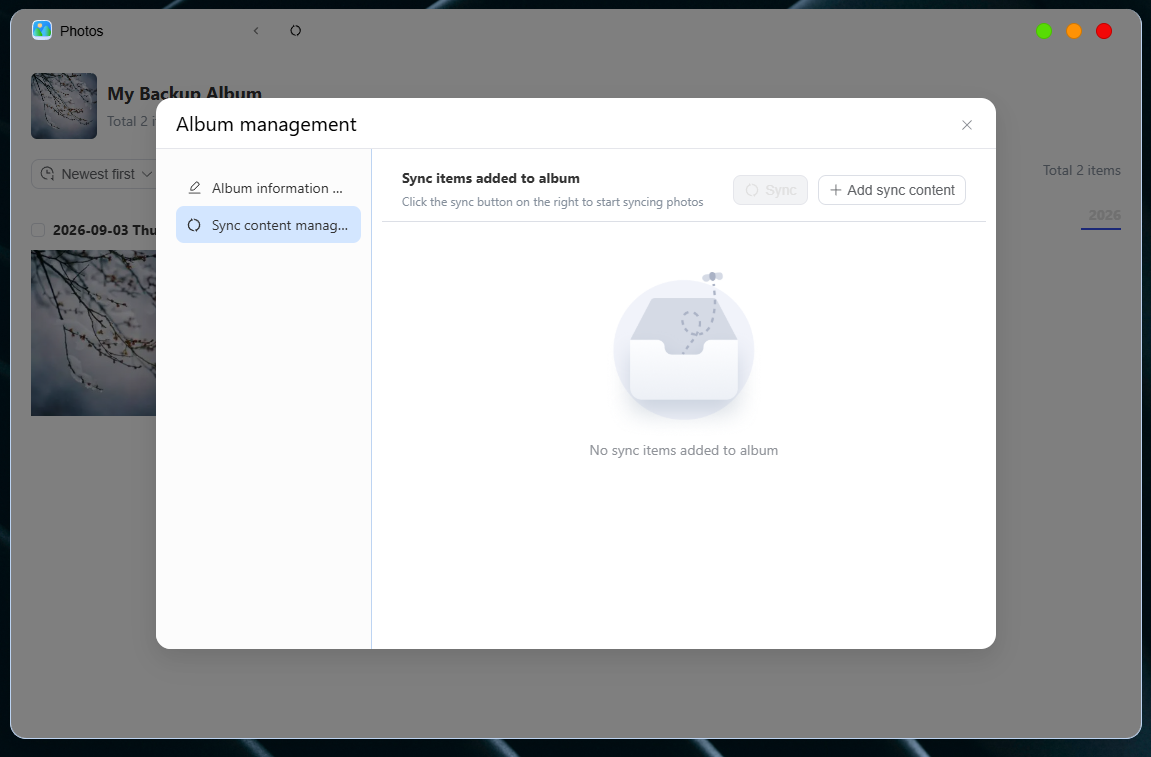
Synchronized Content Management: You can choose to add synchronized content to synchronize photos in real time
- In folder view mode, you can click the **sort icon **in the upper left corner to sort photos and videos, quickly locate specific content or organize your photos. This includes:
● Sort by shooting time (newest first / oldest first)
- Filter Function
The filtering function helps you quickly find photos and videos. The following are the supported filter options:
- File Type
You can select all files, view only videos, view only ima ges, view only GIF animations, view only RAW files, and view only panoramic photos.